Play Xbox Games on A Raspberry Pi
If you ever wanted to experience Xbox Cloud Gaming and play games like Forza Horizon 5 or Back 4 Blood, the Raspberry Pi running Prime OS is more than capable and less expensive than many other devices.
What You Will Need to Get Started:
- Raspberry Pi 4 (4 GB or 8 GB Model Recommended) or a Raspberry Pi 400
- Micro SD Card
- Prime OS Image
- A PC or Mac with Raspberry Pi Imager installed
- Your Favorite PC Gaming Controller
- Xbox Game Pass Ultimate Subscription
Prime OS
Until recently, if you wanted an Android image for your Raspberry Pi 4 that allowed access to the Google Play Store there weren’t many options. However, thanks to Prime OS, which enables us to install Android 11 on the Raspberry Pi 4, this is no longer the case.
Getting Prime OS
As of March 2022, Prime OS is still in Beta, but it’s already pretty great, especially if we want to use it for video games… and we most certainly do!
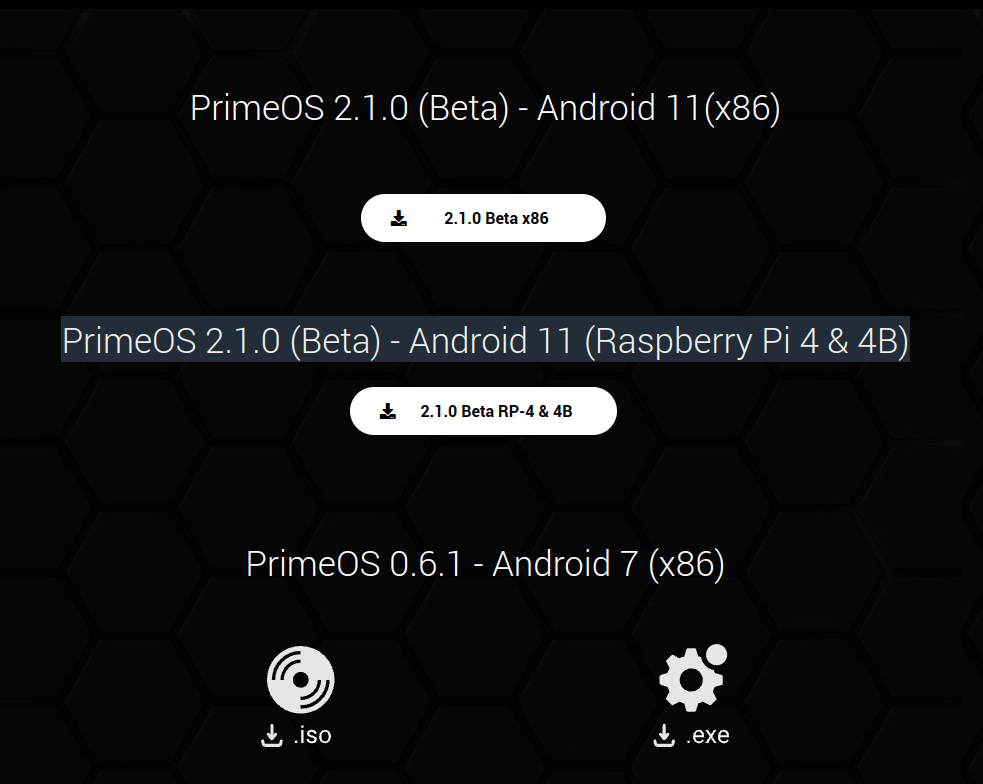
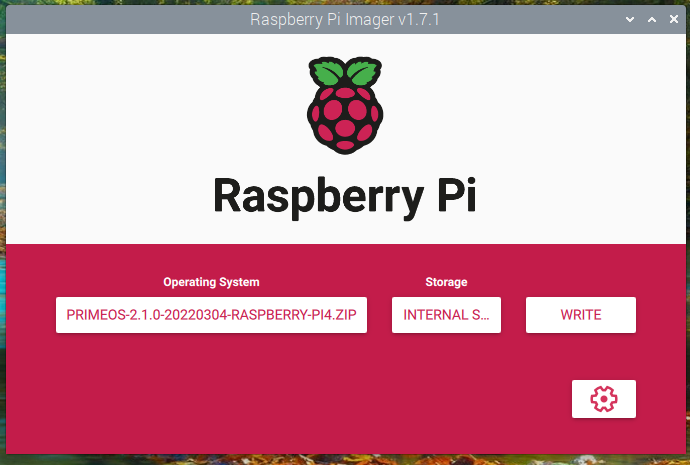
Start by downloading the Prime OS image for the Raspberry Pi 4. Once downloaded, write it to your Micro SD Card Using Raspberry Pi Imager. No need to extract - Raspberry Pi Imager will do it all for you! When you're done insert the Micro SD and boot it up.
Setting Up Prime OS
It should only take a few minutes for the first boot to finish. Follow the setup steps (there aren’t very many) and log in to your Google account.
At this point check out the Raspberry Pi Specific options menu and make any adjustments you want such as switching audio between HDMI or 3.5mm jack.
There is also an option to overclock your Pi from the stock 1.5 GHz to 1.8 GHz which will give you a nice bump in performance although this is optional. Just keep in mind you will need both active (a fan) and passive (heat-sinks) cooling on your Pi. Even an inexpensive case like this will work.
If you want to go up to 2.1 GHz then you can always open up the config.txt file from the Micro SD card on your PC or Mac add the following lines:
over_voltage=6
arm_freq=2100
gpu_freq=600
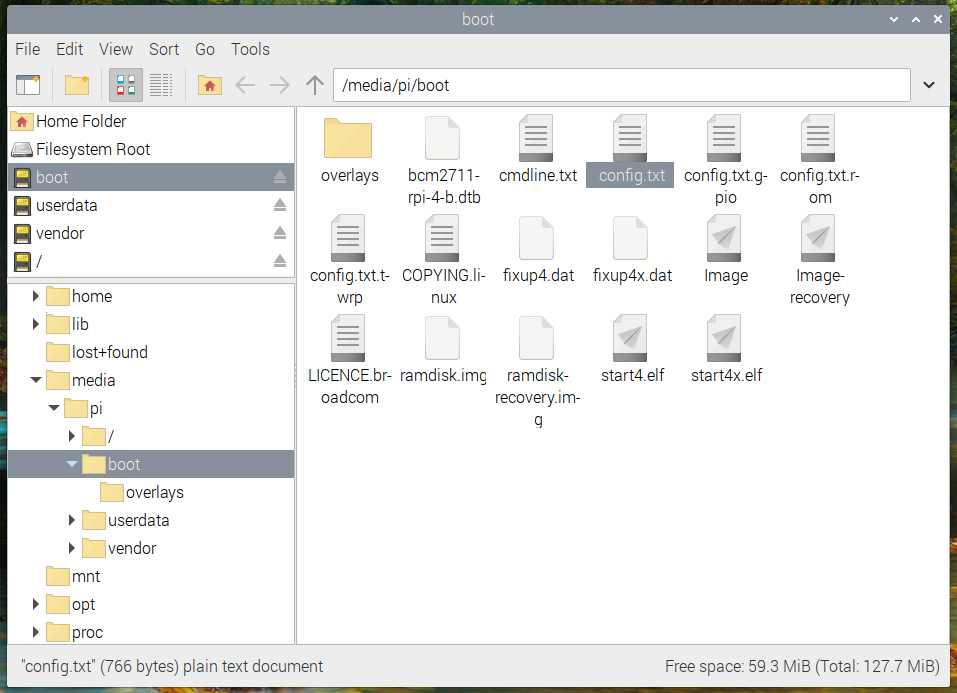
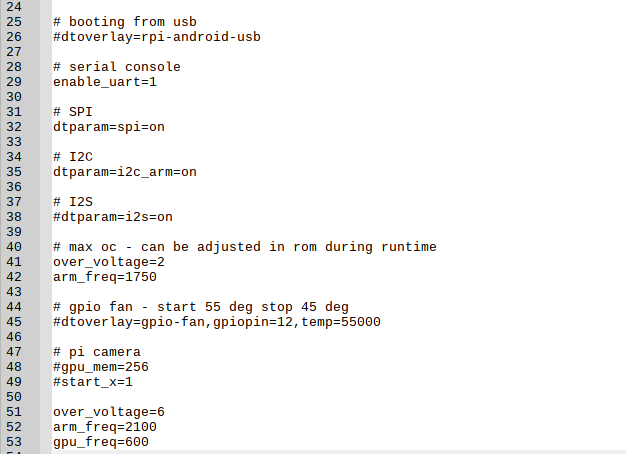
Again, this is optional, but it can help improve overall performance.
Install Game Pass
Open the Play Store and install Game Pass. You could always just access Xbox Cloud Gaming through your Pi’s browser on Pi OS or Twister OS, but I have found that Prime OS provides the best performance, least amount of lag, and fantastic response time.
Once you log into Game Pass (keep in mind that you will need to have an Xbox Game Pass Ultimate subscription) you will be able to access and launch any games that are a part of Microsoft’s Cloud Gaming Beta.
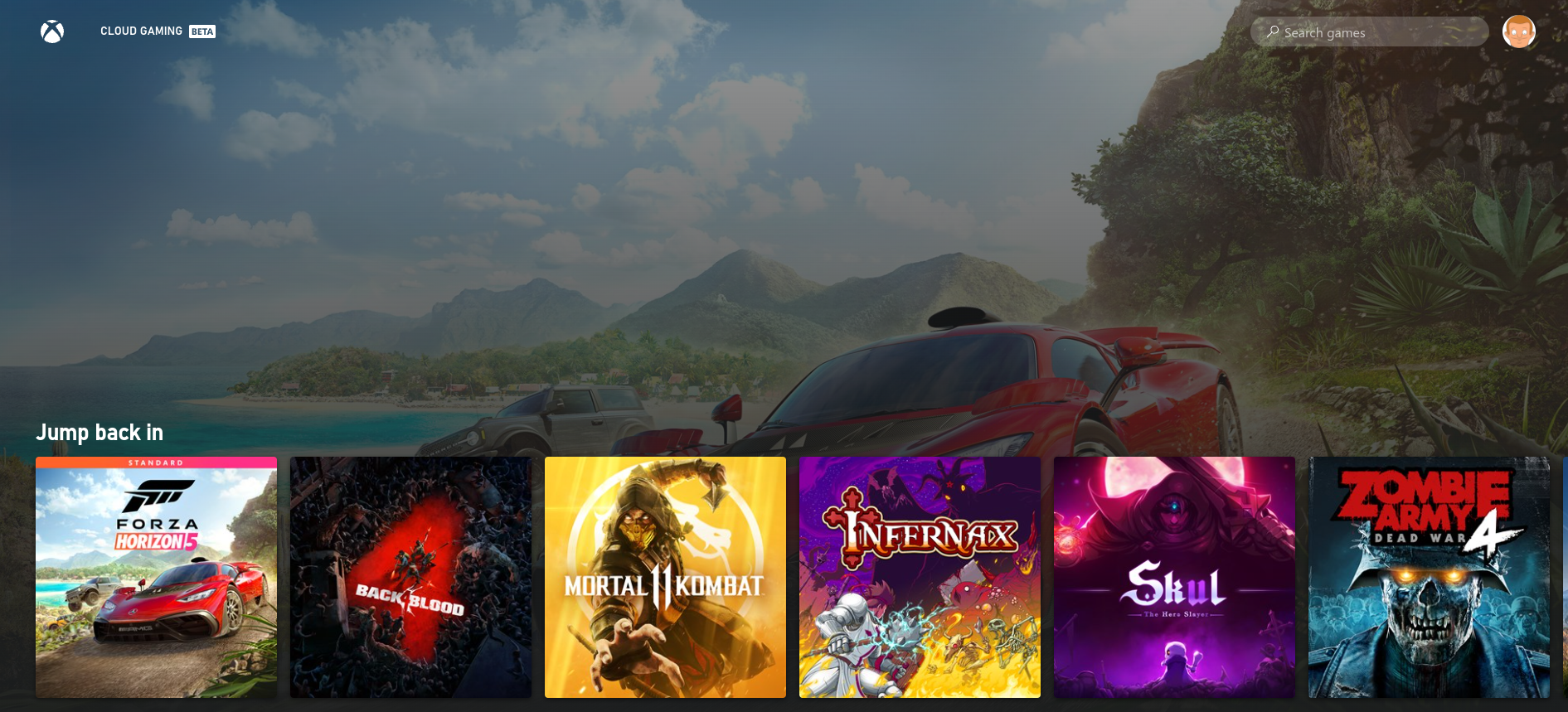
Connect your controller, find the game you want to play and you're off!
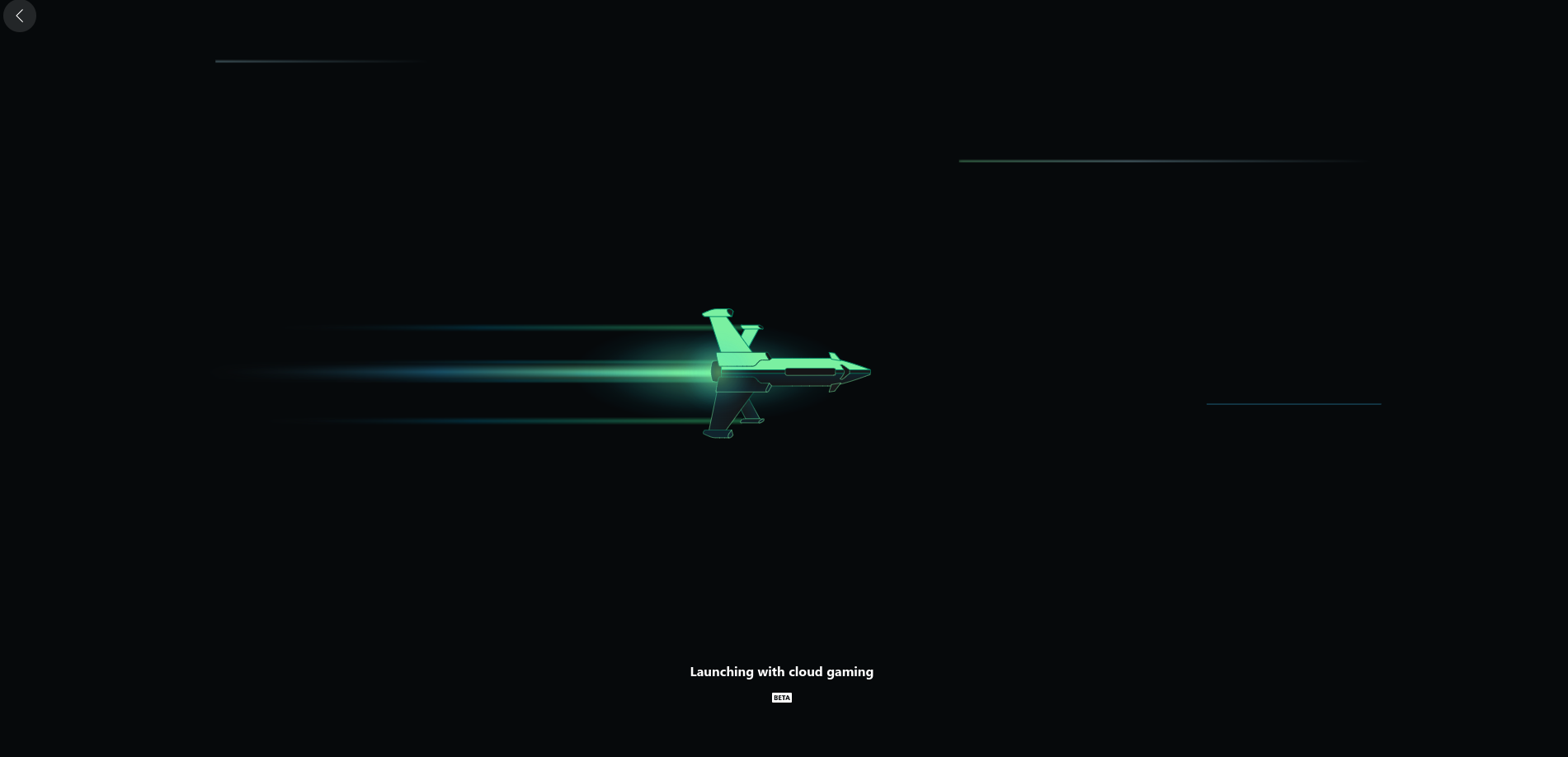
Just ignore any warnings about your browser, operating system, and controller not being supported…. at least that’s what I did.
Games like Forza Horizon 5, Back 4 Blood, and old favorites like Dead Cells run surprisingly well streaming on the Raspberry Pi 4, although I would highly recommend using Ethernet.
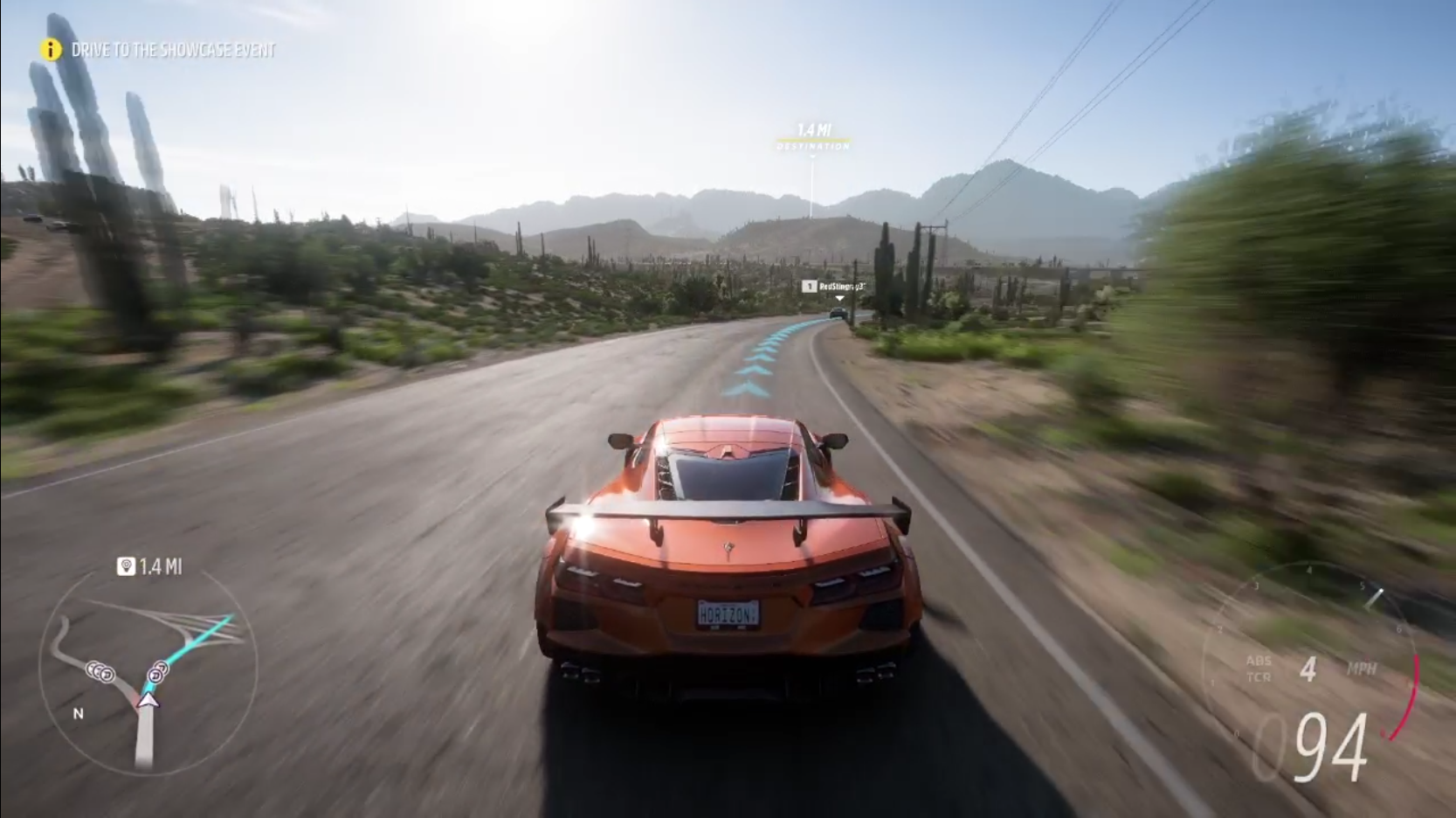
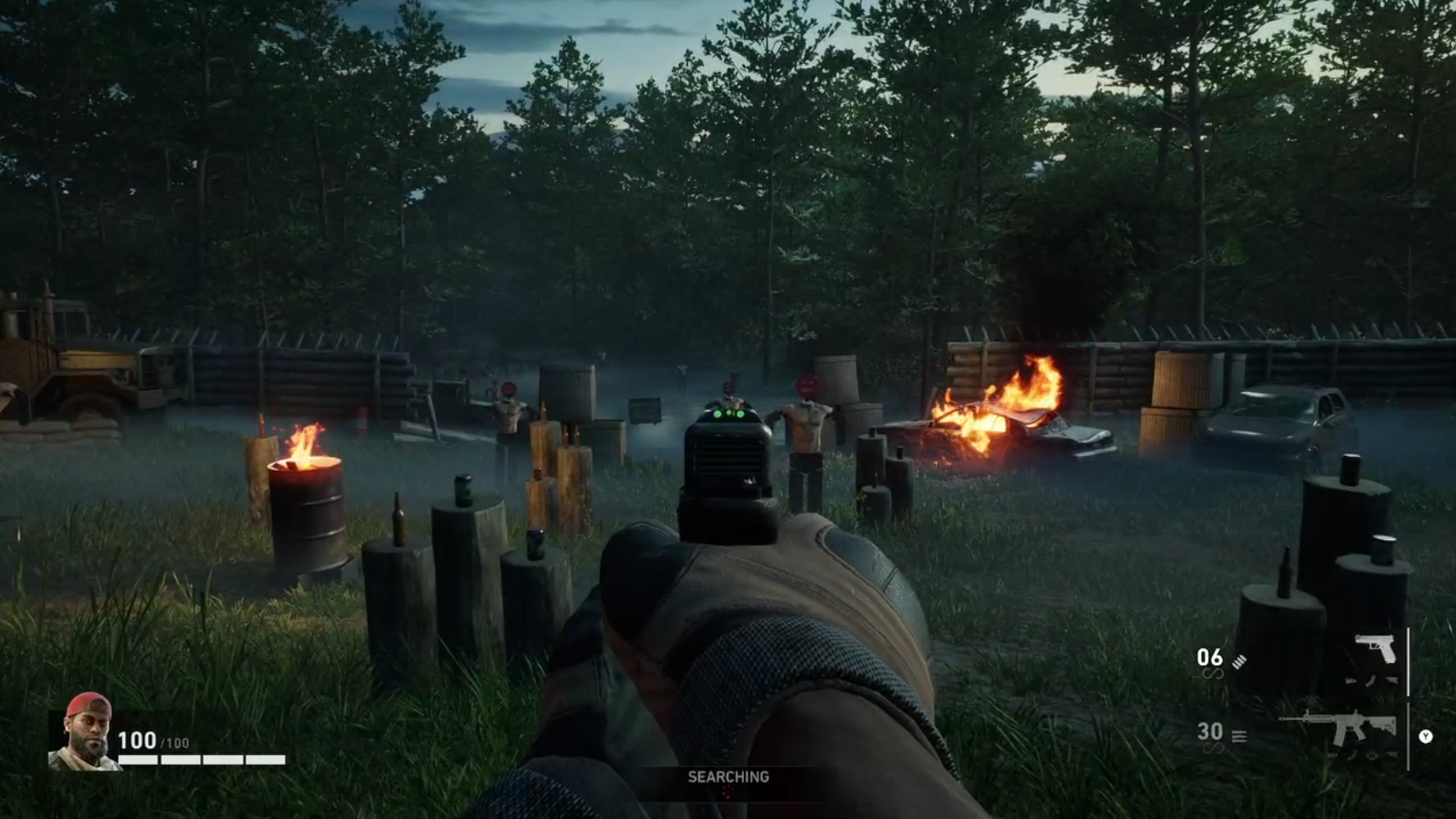
And that’s it!
You’ve turned your Raspberry Pi into an Xbox Cloud Gaming machine using Prime OS. All that’s left to do is sit back and enjoy!
Happy gaming my friends.
If you would like to see a video on how to do this ETA Prime's is outstanding.
This Article was Written and Published on a Raspberry Pi 4B 8 GB Model. All Screen captures were taken on a Raspberry Pi 4.
Post a comment